
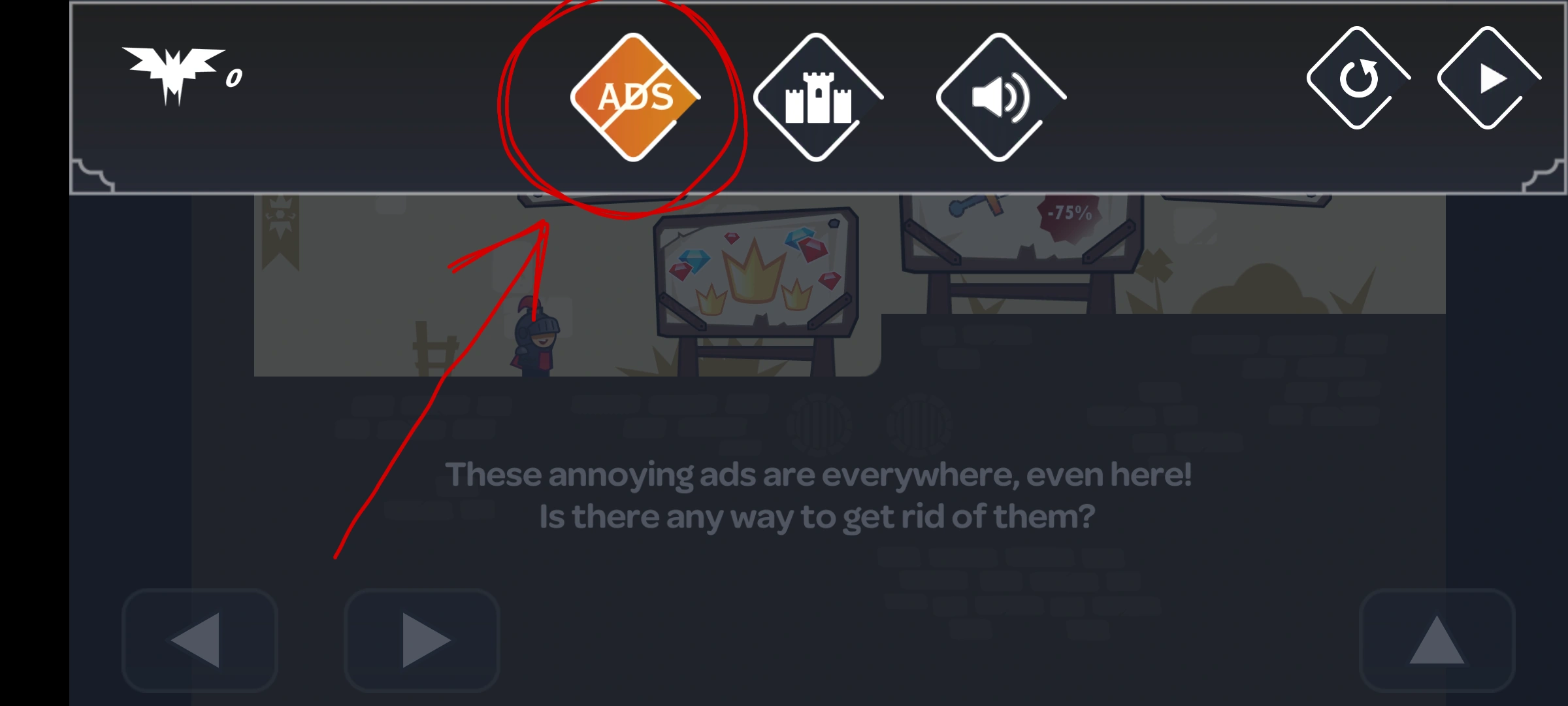
Tricky Castle room numbers can change between Android and iOS releases. Before following this Tricky Castle Level 14 guide, match the gameplay screenshot, room layout and puzzle clue to your version.
Tricky Castle Level 14 walkthroughs & guide
Below is a comprehensive walkthrough for Tricky Castle Level 14, covering the complete route from the opening position to the exit. The main challenge in Tricky Castle Level 14 is learning how to pause the game and press the No Ads button while avoiding the trick built into the room. Follow the steps in order, check the visible response after each action and use the screenshot above to confirm that you are on the same version of the level.
Tricky Castle Level 14 quick answer: Open the pause menu and tap the crossed-out ADS icon, which is the first menu button from the left, to remove the level’s fake ads.
Step 1. Open the pause menu
In Tricky Castle Level 14, do not search the play area for a lever that removes the obstructing advertisements. Tap the pause button in the top-right corner so the full row of menu controls appears. The clue refers to removing ads the same way another mobile game might, making the interface itself part of the puzzle.
Step 2. Tap the crossed-out ADS icon
In Tricky Castle Level 14, find the orange button marked ADS with a diagonal strike through it. It is the first large menu icon when read from left to right. Touch that icon once; it is a functional level control rather than a purchase link, and activating it removes the fake advertisement obstacles from the room.
Step 3. Resume and follow the cleared route
In Tricky Castle Level 14, close or resume the pause menu after the ads disappear, then return to the knight controls. Walk through the route that was previously obstructed and enter the exit. No payment, store screen or repeated tap is needed—the crossed-out icon directly changes the level state and provides the solution.
Notes and Precautions
- 1. The ads mentioned by the clue are part of the puzzle, not real advertising that must be watched.
- 2. The required control is inside the pause menu and is the first button from the left.
- 3. Tap the crossed-out ADS icon only once and wait for the room to update.
- 4. The pumpkin-sign star is optional and can be collected separately from the exit route.
Tips and Tricks
- 1. Open the menu immediately so the level does not waste time on fake obstacles.
- 2. Match the orange crossed-out ADS logo shown in the screenshot.
- 3. Collect the star before resuming the final walk if you want full completion.
- 4. If the room remains blocked, reopen pause and confirm the correct first icon was selected.
Tricky Castle Level 14 collectibles and secrets
For Tricky Castle Level 14, there are no bats in this room. An optional star is visible on the far-right pumpkin sign; tap the star on that sign before leaving to collect it. The star does not affect the fake-ad removal or the exit, so it can be collected immediately after the route becomes visible.
By following these steps in sequence, you can finish Tricky Castle Level 14 without relying on random movement or unnecessary interactions. Remember that the defining puzzle in Tricky Castle Level 14 is to pause the game and press the No Ads button. If your room looks different, compare the screenshot and video before retrying because your game version may use another level number.
Tricky Castle Level 14 walkthrough video
Tricky Castle Level 14 walkthrough by PRAMONEZ LOMBOK. The video opens directly on this level.
Tricky Castle Level 14 video walkthrough and solution
This Tricky Castle Level 14 walkthrough video shows the complete verified route from the opening position to the exit. Watch how the player handles the room’s main trick—pause the game and press the No Ads button—then use the written checkpoints below if you need to repeat only one part of the solution. The dedicated Tricky Castle Level 14 video solution is especially useful for jump timing, moving hazards and interactions that are easier to recognize in motion.
Tricky Castle Level 14 video quick answer: Open the pause menu and tap the crossed-out ADS icon, which is the first menu button from the left, to remove the level’s fake ads.
What to watch for in the Tricky Castle Level 14 walkthrough video
Before copying the movement, compare the room layout in the video with your game. Tricky Castle numbering can differ between Android and iOS builds, so the visual arrangement and puzzle clue are more reliable than the number alone. When the room matches, play the Tricky Castle Level 14 walkthrough video once at normal speed to understand the full idea, then replay the exact action that is causing trouble.
Video checkpoint 1: Open the pause menu
At this point in the Tricky Castle Level 14 video walkthrough, do not search the play area for a lever that removes the obstructing advertisements. Tap the pause button in the top-right corner so the full row of menu controls appears. The clue refers to removing ads the same way another mobile game might, making the interface itself part of the puzzle. Watch the character, nearby hazards and any object that changes after the action; that visual response confirms that you can move to the next checkpoint.
Video checkpoint 2: Tap the crossed-out ADS icon
At this point in the Tricky Castle Level 14 video walkthrough, find the orange button marked ADS with a diagonal strike through it. It is the first large menu icon when read from left to right. Touch that icon once; it is a functional level control rather than a purchase link, and activating it removes the fake advertisement obstacles from the room. Watch the character, nearby hazards and any object that changes after the action; that visual response confirms that you can move to the next checkpoint.
Video checkpoint 3: Resume and follow the cleared route
At this point in the Tricky Castle Level 14 video walkthrough, close or resume the pause menu after the ads disappear, then return to the knight controls. Walk through the route that was previously obstructed and enter the exit. No payment, store screen or repeated tap is needed—the crossed-out icon directly changes the level state and provides the solution. Watch the character, nearby hazards and any object that changes after the action; that visual response confirms that you can move to the next checkpoint.
Tricky Castle Level 14 video notes and precautions
The video route is a demonstration of one clean completion, not a signal to rush. Pause before any precise jump or timed interaction and compare the player’s starting position with yours. In Tricky Castle Level 14, a small difference in spacing can change when a trap activates.
- 1. The ads mentioned by the clue are part of the puzzle, not real advertising that must be watched.
- 2. The required control is inside the pause menu and is the first button from the left.
- 3. Tap the crossed-out ADS icon only once and wait for the room to update.
- 4. The pumpkin-sign star is optional and can be collected separately from the exit route.
Tips for following the Tricky Castle Level 14 video solution
- 1. Open the menu immediately so the level does not waste time on fake obstacles.
- 2. Match the orange crossed-out ADS logo shown in the screenshot.
- 3. Collect the star before resuming the final walk if you want full completion.
- 4. If the room remains blocked, reopen pause and confirm the correct first icon was selected.
Collectibles shown around Tricky Castle Level 14
After learning the escape route from the Tricky Castle Level 14 walkthrough video, replay the room for optional items if needed. there are no bats in this room. An optional star is visible on the far-right pumpkin sign; tap the star on that sign before leaving to collect it. The star does not affect the fake-ad removal or the exit, so it can be collected immediately after the route becomes visible. A separate collectible run is often safer than trying to combine every secret with the first successful exit.
Finish Tricky Castle Level 14 with the video
The important lesson in this Tricky Castle Level 14 video guide is to reproduce the order of actions, not merely the final movement. Confirm each switch, platform or hazard response before continuing. If your screen still does not match, return to the screenshot on the Cheats & Solution tab and locate the guide whose room layout matches your version.